
At Montevideo Labs we’re heavy users of Amazon Athena, as it is a very convenient tool for adhoc querying, running analysis and even for programmatic query triggering.
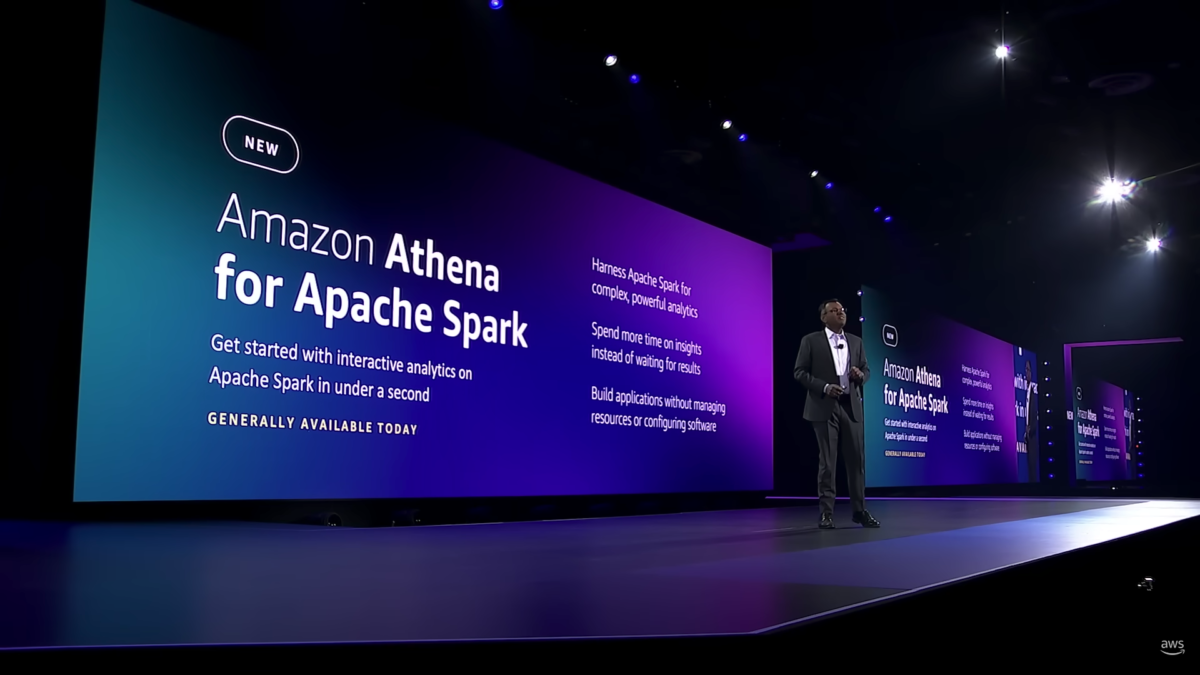
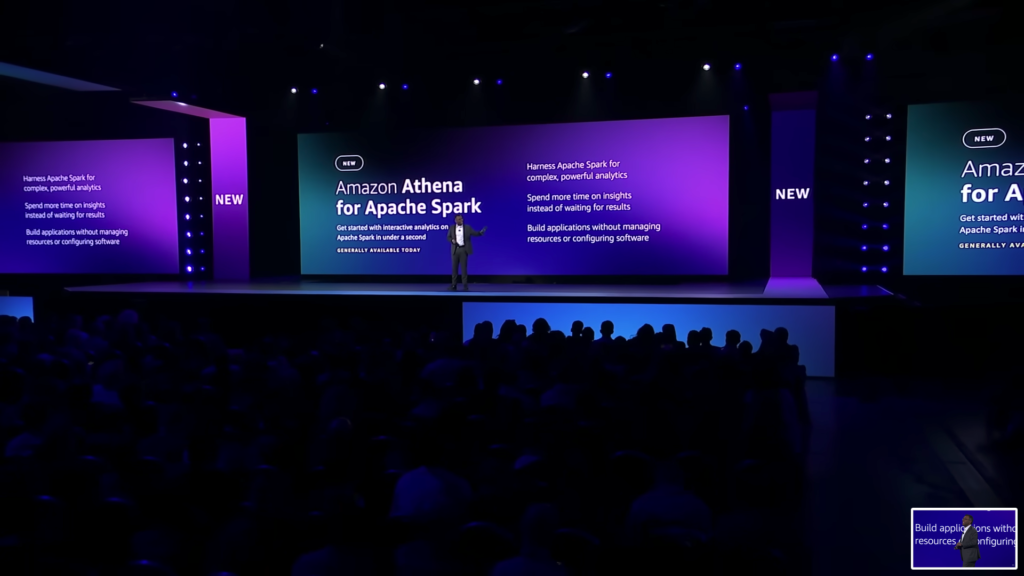
At the latest edition of AWS re:Invent 2022, Swami Sivasubramanian (VP of database, analytics, and ML) announced Athena’s support for Apache Spark and we were really excited about it!
As proficient users of Apache Spark the headline was very well received, but we were curious about various aspects:
- Is it as easy to use as the traditional tool (mostly for SQL queries)?
- Does it have a similar interface?
- How does it differ from what you can do in Glue Studio or in SageMaker notebooks?
- Does it support all Spark components?
- Is it as fast and efficient as the traditional query-based engine?
- What are some of its limitations?
So we went through the process of using Apache Spark for Athena so as to try to answer the questions above. Let’s first go through the steps needed to set up Athena for Apache Spark.
Setting up Athena for Apache Spark
Getting Started
Once you get to the console’s Athena page in your region (e.g. https://us-east-1.console.aws.amazon.com/athena/home?region=us-east-1#/landing-page), the first step is to select “Analyze your data” (as opposed to the traditional option for “Query your data”). If this is your first time using Athena for Spark, then you will need to create a workflow and choose Apache Spark:


If you already have an IAM Role suitable for Athena for Spark, you can select it. Otherwise, as in our case, AWS will create a new role with all the permissions necessary to get started.

Such a role will have permissions to write data to a log bucket, athena access itself, and the ability to write to CloudWatch logs. In our case the role created was named AWSAthenaSparkExecutionRole-l5mlv874cc.
Once you have the workgroup created, you can select it:

Then we proceeded to create a notebook within the workgroup (a workgroup can have multiple notebooks):


Once you have created the notebook the typical jupyter-like interface will be available:

Running Spark Code
As in other AWS notebook systems the implicit spark variable will reference a Spark session that will be created on-the-fly for you:

On our first attempt to read a dataset from a CSV file stored in S3 we got access denied error:

This is due to the fact that the role we’re using for Athena does not have access to the data in the bucket where the dataset lies. However, since we know which IAM Role that is (AWSAthenaSparkExecutionRole-l5mlv874cc in our case), we can look it up in the IAM console and add the additional policy entries (by editing the existing policy or adding a new one). In our case we just edited the existing policy and added the bucket we have our dataset on:

Now we’re able to load the data and start running queries. In the screenshot below we run a Spark describe command on the dataset.
Note:
The dataset we used here is the one we used on Chapter 4 of our book Mastering Machine Learning on AWS (you can find an easy access link here: https://www.amazon.com/Mastering-Machine-Learning-AWS-TensorFlow/dp/1789349796)which has rows representing ad impressions in different devices, each of which may or may not have resulted in users clicking on such impressions. Such a dataset has a size of 6GB.

Each cell execution triggers a calculation, which in turn may result in AWS launching Spark nodes in the background. These nodes will incur in data processing costs measured by Data Processing Units (DPUs) which are the basis for AWS to charge us for this service. While we don’t control the kind or number of nodes in the background, we can set a maximum number of DPUs attached to the notebook session by editing the session details. Note that AWS does not charge us for the use of the notebook itself. It will only bill us the usage of DPUs from both the notebook’s Spark driver as well as the Spark worker nodes.
The Jupyter notebook supports the convenient magic %%sql command for us to run SQL directly in the notebook. For that we can register a table name from a dataframe as follows:

The above query shows how many impressions resulted in clicks vs how many impressions we just showed but not clicked into.
Integrating Pandas and Plotting
Additionally one can run heavy Spark queries that aggregate results in smaller datasets which in turn can be transformed into Pandas for convenient analysis and plotting.
First we construct a Spark dataframe by running a SQL aggregation query. Then we transform the Spark dataframe to Pandas:

The Pandas dataframe can be viewed as usual:

As you can see in the cell above, an attempt to plot the pandas Dataframe did not show the graph! This is because we need to explicitly clear the pyplot current figure and call the %matplot plt module. In the cell below we show how this is done:


We found it surprising that this is explicitly required, but not a big problem.
Tracking Calculations
In the session information of the notebook we can find all the calculations that were triggered as well as the duration. If you observe the table below (as well as each cell’s output) the durations are always just a few seconds. This is impressive considering our dataset was several gigs in size!

Limitations
Our original goal was to be able to run Spark machine learning pipelines within Athena. However we later found that this is not supported, as described in Athena’s documentation:
MLlib (Apache Spark machine learning library) is not supported. For a list of supported Python libraries, see the List of preinstalled Python libraries.
An attempt to import pyspark.ml will result in python not resolving such a library.
Takeaways
These are the main takeaways from our first steps towards using Apache Spark within Athena.
- Athena for Spark is a great tool to quickly run data-wrangling notebooks and quick analysis with very little set up.
- Spark MLlib is not yet supported. If you want to run machine learning jobs, we recommend you use SageMaker, EMR, or Glue.
- As opposed to SageMaker (and Glue Notebooks), you don’t need to explicitly provision notebooks for your analysis, nor you will be charged for the use of the notebook itself However you will be charged for the DPUs of the jobs you trigger when you run the cells on your notebook.
- Athena for Spark is extremely fast and the job provisioning is a very smooth experience.
- It’s easy to re-open old notebooks without the need to provision a notebook server.
- Compared to Glue Studio, we found Athena for Spark to be much simpler to use and faster to set up. However, it comes with some limitations (such as supported libraries).
Interested in exploring the use of Apache Spark on Athena? As AWS Partners our team at Montevideo Labs has extensive experience with AWS services at scale. Contact our team to learn how we can help you in your cloud journey!
By: Montevideo Labs Engineering Team